Auto
Auto  1 hour ago
1
1 hour ago
1 
Published Oct 12, 2026, 4:00 PM EDT
Dibakar Ghosh is a tech journalist at How-To Geek with over a decade of experience using and writing about open-source software, Linux, Android, AI, and personal productivity. He writes about software, operating systems, and tools that help people get more from the technology they already use.
Do you, like me, use Claude every other minute as your go-to thinking partner? If so, you probably already know how annoying it is to keep opening the Claude app every time you want to fact-check something, proofread an email draft, or bounce ideas off it. Sure, you could keep the app open all the time, but then you'd have a different problem, with one more app window cluttering up your desktop.
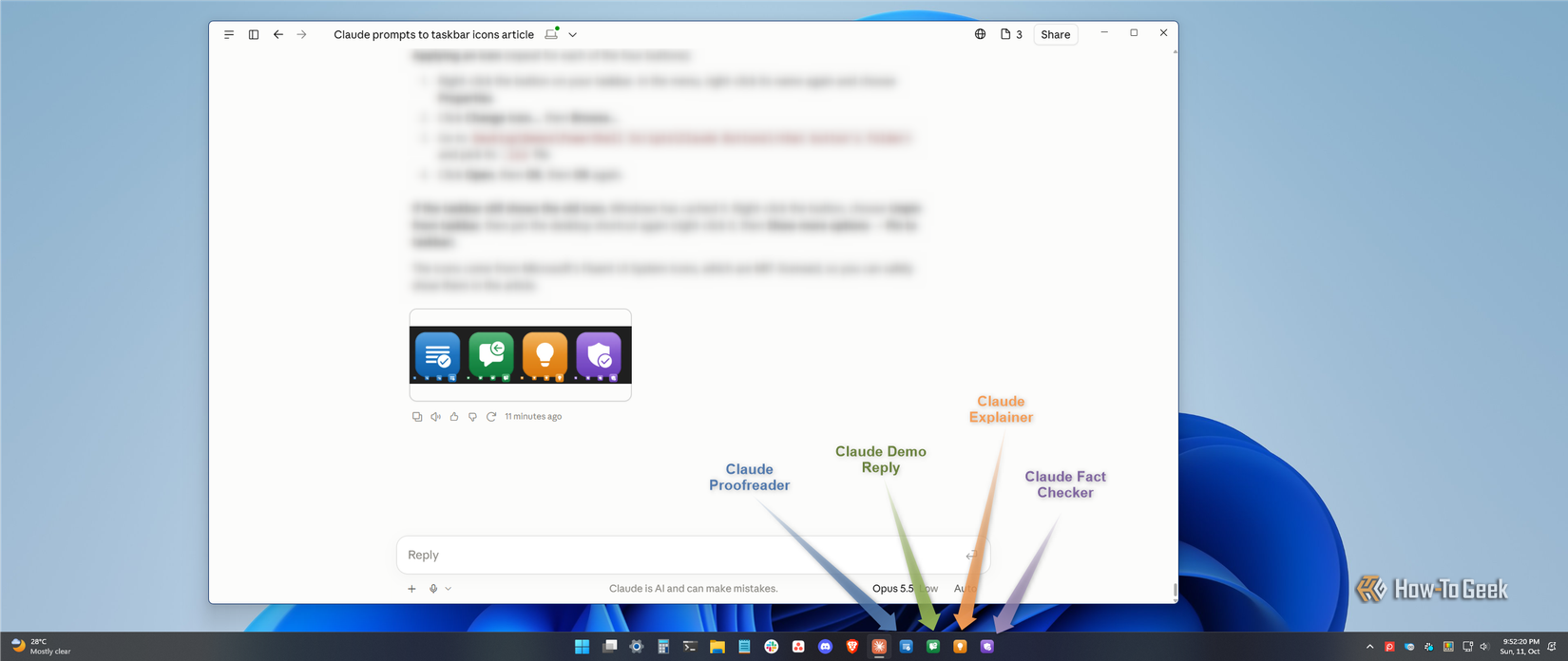
I've personally found this workflow extremely annoying, so I went looking for a way to streamline the entire process — and I think I've found the perfect solution. I now have taskbar shortcuts that I can click to trigger a routine Claude workflow and get the results back without ever having to open the Claude app. Here's how it works.
Complete Claude workflows just a click away
This is how I’m using Claude moving forward
We’re always looking for ways to streamline how we prompt LLMs. In the beginning, we’d write a task along with a detailed prompt explaining how to complete it. Eventually, we found ourselves repeating the same tasks, so we started saving our prompts somewhere. I remember using Obsidian, like many others, to build a library of my favorite prompts. However, this meant opening both Claude and Obsidian, finding the right prompt, and pasting it into Claude to get the job done — not exactly the most sophisticated workflow, if you ask me.
To solve this problem, Anthropic introduced Projects, which are similar to custom GPTs in ChatGPT. You can set up a Claude Project with instructions already saved in it. This way, each project becomes a preconfigured space for a specific, repetitive workflow. Skills.md files streamlined this process even further. Now, you can invoke a “skill” using a slash command in the middle of typing a message, and it brings in the necessary prompt (instructions) for that particular task.
However, all these approaches still require you to open Claude alongside whatever app you're working in. I wanted to eliminate that hassle altogether. I wanted a button I could click to trigger Claude, pass along the prompt and context, and get the result back.
I experimented with Raycast-style launchers and AutoHotkey scripts to find the right balance, and eventually settled on PowerShell scripts pinned to the taskbar.
The PowerShell script essentially runs Claude Code in headless mode. It passes along whatever is on my clipboard, whether that's a piece of text or a screenshot, along with a specific prompt. Claude Code then processes the input and returns the output. Depending on how I've configured the script, it can display the output in a pop-up window, paste it wherever my text cursor is, copy it to my clipboard, or even create a file. Here’s how you can build something similar for yourself.
How to run Claude prompts using taskbar shortcuts
Claude’s responses are now just a click away
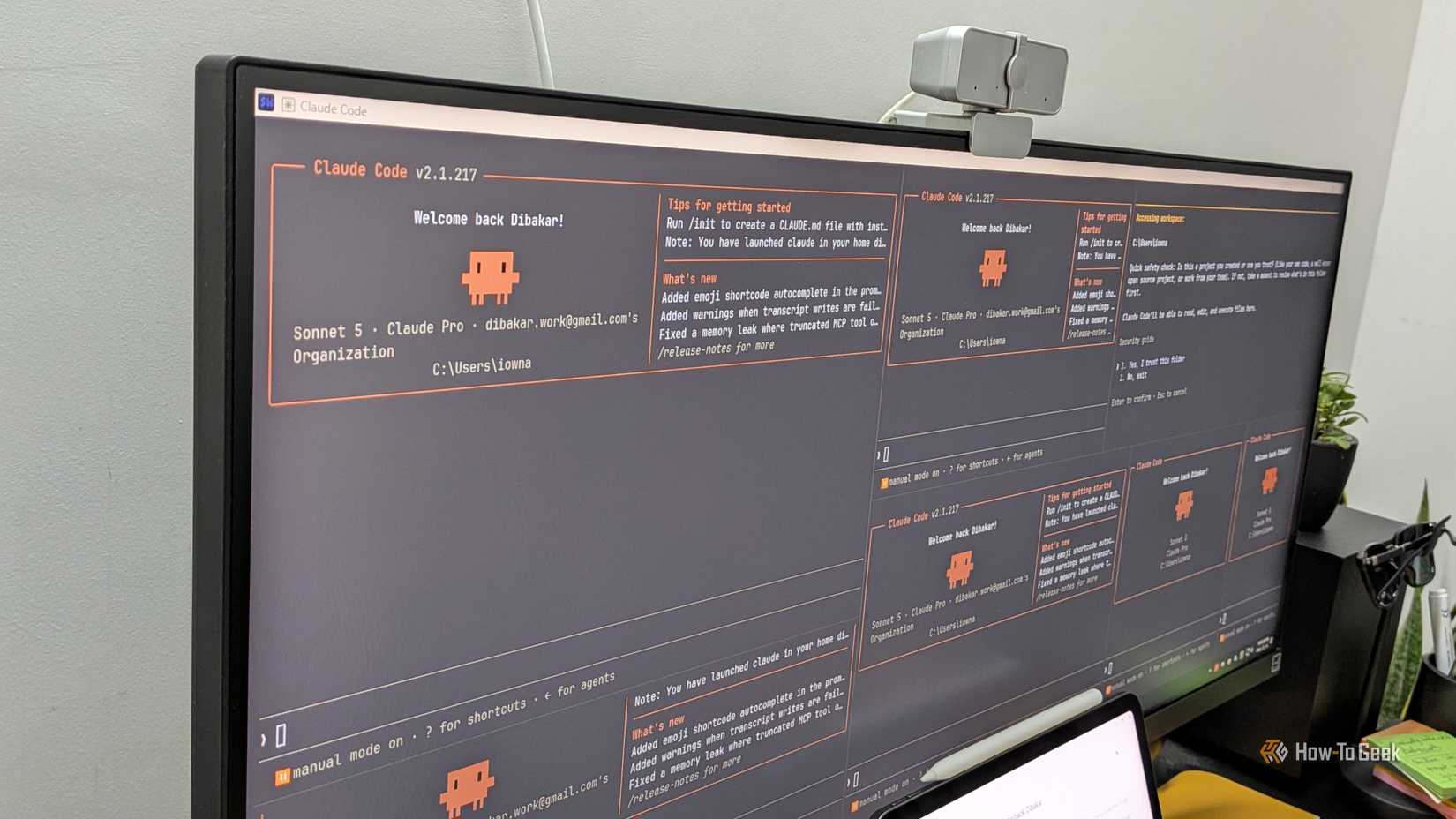
The trick relies on creating custom PowerShell scripts, but if you’ve never created one before, don’t worry. The beauty of Claude is that you can use it to create the scripts for you as well. Simply open Claude Code or the Claude desktop app, since both can write and save the files directly to your PC. Then, give Claude the following prompt.
I want to build a Windows 11 taskbar button that runs a Claude prompt on whatever is on my clipboard. Please create: 1. A PowerShell script that reads my clipboard (text or an image, such as a screenshot), sends it to Claude Code in headless mode using `claude -p`, and either puts the result back on my clipboard or displays it in a window I can close manually. 2. A separate prompt file next to the script that holds the instructions, so I can edit the prompt later without touching any code. 3. A Windows notification when it starts working and when it's done, plus a notification with the error if something fails. Use `--system-prompt-file` so my prompt replaces Claude Code's default coding prompt, `--safe-mode` so my personal Claude Code settings don't interfere, and disable any tools the button doesn't need. Save everything in this folder: [your folder path] Here's what this button should do: [describe the button, for example "fix grammar and spelling in my clipboard text and put the corrected version back on the clipboard"] When you're done, give me the exact shortcut target I need to paste into a new desktop shortcut, explained step by step as if I've never done it before.Claude should create the PowerShell script and prompt file, then walk you through creating the shortcut.
When I tested this, Claude couldn't create the shortcut and pin it to the taskbar for me, which would have automated the entire workflow. However, that limitation could change with a future update.
Once you have the shortcut, right-click it and select Show more options > Pin to taskbar. That's it.
By default, these shortcuts will have a generic PowerShell icon. To customize one, download an icon you like in ICO format. Then, right-click the shortcut, select Properties > Change Icon, and point it to your downloaded file. Your shortcut will now have a custom icon, making it easier to tell your different workflows apart at a glance.
[gallery showing prompt, powershell script, shortcut, icon, taskbar]
The Claude prompts I turned into taskbar shortcuts
Focus on your most repetitive workflows
If you’re looking for inspiration on which Claude taskbar shortcut to build first, here are the four buttons I use.
First, I have a proofreader workflow. I routinely use voice typing, but it introduces a lot of transcription errors and punctuation errors. So, when I get the transcribed text, I copy it to my clipboard and click the “Proofreader” button on my taskbar. Claude processes the text in the background, fixes the errors, and saves a cleanly formatted version to my clipboard. I can then paste it wherever I want.
Next, I often have to reply to people with standard responses that point them to specific resources based on their questions. These replies are essentially if-else statements recontextualized for each question, making them ideal candidates for LLM automation. I've written a prompt containing all the resources and instructions on when to recommend each one. When I receive a question, I copy it, click “Reply” on my taskbar, and Claude generates a contextual response with the appropriate information and saves it to my clipboard.
Then there’s the “Explainer” button. I can copy an error code or take a screenshot, which is automatically saved to my clipboard, and click the button. Claude analyzes the content, performs a quick web search, and creates a custom floating window explaining the issue, along with sources I can consult for further reading.
Finally, there’s the “Fact Checker.” I can copy a statement or a tweet, or take a screenshot of something suspicious, and click the button. Claude draws on its existing knowledge and searches the web to verify the claims and break down what’s true and what isn’t, with links to relevant sources. The results appear in a floating window, just like with the Explainer workflow.
That said, you’re not limited to these relatively simple workflows. You can use Claude’s Record a Skill feature to demonstrate a task on your system and teach Claude how to perform it, then invoke that workflow using a shortcut. Your workflows can be as simple or complex as you like, limited only by your imagination.
It’s easier than ever to build your AI-native OS
Microsoft promised to make AI a first-class citizen in Windows 11, but most of that experience is reserved for Copilot+ PCs. That said, even there, the features don't feel integrated enough to be genuinely useful. As such, if you're tired of waiting, you can use CLI-based AI tools like Claude Code or Codex, along with a bit of PowerShell, to integrate AI into your system in far more practical ways and build your own AI-native setup around the way you actually work.
I should also mention that this approach isn't limited to Claude. If you don't want to share your data with a third party, you can run a local LLM using Ollama or LM Studio's local server. That way, your data stays on your machine instead of being sent to a cloud-based AI service.